What is conhost.exe? Understanding its purpose and safety


Conhost.exe, short for Console Window Host, is a legitimate Windows system process. It acts as a bridge between text-based tools and the graphical desktop, allowing console windows to display correctly and respond to user input.
You’ll typically see conhost.exe running in Task Manager when you use tools like Command Prompt or PowerShell. It’s included with Windows by default and is safe to run. However, because its name is widely recognized, malicious software may sometimes imitate it to avoid detection.
In this guide, we explain what conhost.exe does, why Microsoft introduced it, and how it works with command-line tools. We also explain how to distinguish a legitimate conhost.exe process from one that may be a security issue.
What conhost.exe does in Windows
Conhost.exe provides the graphical interface for Windows command-line applications. When a user opens Command Prompt, PowerShell, or another console tool, Windows launches a conhost.exe process to display the text-based window and manage user interaction.
Conhost.exe handles visual and input-related functions such as rendering text, processing keyboard input, and supporting standard Windows features like resizing, scrolling, copy and paste, and theming. It doesn’t execute commands or scripts itself. Instead, it acts as the interface layer that allows command-line applications to operate within the Windows desktop environment.
It’s normal to see multiple conhost.exe instances running in Task Manager. Windows creates a separate instance for each console application to maintain stability and isolate processes. These instances may include both active and inactive command-line windows.
Background processes can increase the number of instances you see. Many applications rely on command-line functionality behind the scenes, even when no visible console window appears. This includes gaming peripherals, system utilities, hardware monitoring tools, backup clients, container platforms, and development tools.
Windows services, scheduled tasks, and administrative tools in networked environments may also launch console-based tasks in the background, which can result in additional conhost.exe instances.
Why Microsoft introduced conhost.exe
Microsoft introduced conhost.exe to address limitations in how earlier versions of Windows handled command-line applications. Before Windows Vista, console window management was handled by the Client Server Runtime System Service (CSRSS). This system-level service created significant challenges for both reliability and security.
Because CSRSS operated with system-level privileges, a crash could bring down the entire computer. Security vulnerabilities were especially dangerous, since exploiting them could give attackers full system control. On top of that, CSRSS lacked support for Windows themes, which left Command Prompt with a plain, outdated appearance.
Microsoft developed conhost.exe to address these concerns. Moving console window management to a separate process with user-level permissions reduced the attack surface and the likelihood of privilege escalation from CSRSS vulnerabilities. Plus, if conhost.exe crashes, it only affects the specific console window, not your entire system.
Separating console window handling into conhost.exe allowed improvements to the console experience without altering critical system processes as well. It made it easier for Command Prompt to support newer interface features while maintaining compatibility with existing command-line tools.
When conhost.exe may indicate malware
Several warning signs can suggest that a conhost.exe process may be malicious.
File location outside C:WindowsSystem32
First, verify the file location. A legitimate conhost.exe file is stored in the C:WindowsSystem32 directory. If it appears elsewhere, it may indicate a malicious imitation.
To check the file location of a conhost.exe instance, follow these steps:
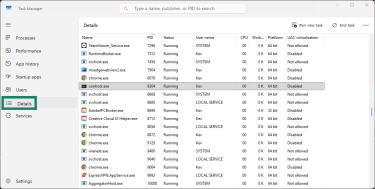
- Open Task Manager (Ctrl + Shift + Esc), then navigate to the Details tab.
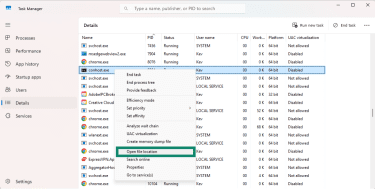
- Find conhost.exe in the process list, right-click it, and select Open file location.
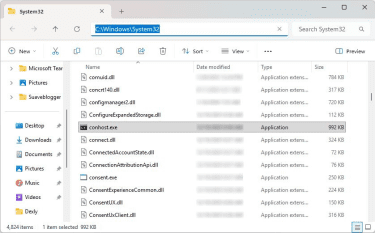
- If the location is C:WindowsSystem32, the conhost process isn’t harmful. If it’s in any other location, it’s very likely to be malicious and should be removed.
After confirming conhost.exe is in the System32 folder, verify its digital signature. The authentic conhost.exe file carries a Microsoft digital signature. Follow the steps below to check the digital signature.
- Right-click the conhost.exe file in the System32 folder and select Properties.
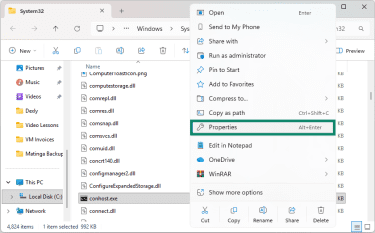
- Find the Digital Signatures tab. You should see Microsoft Windows Publisher listed.
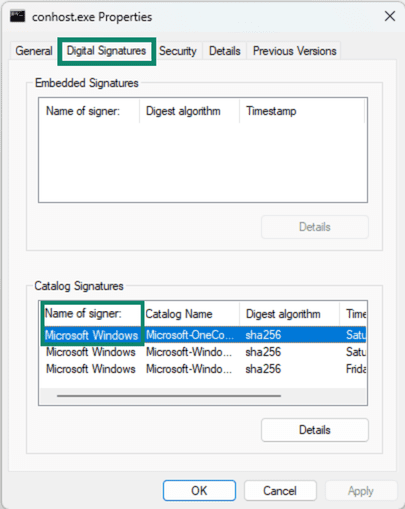
- Click the signature and choose Details to view more information about the certificate.
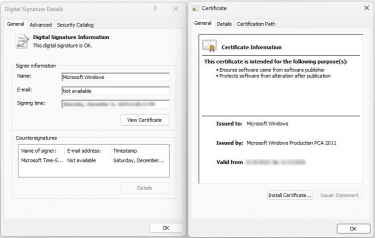
If the signature is missing or the signer is unknown, the conhost.exe file may be corrupted or potentially malicious. Most legitimate Windows system files carry Microsoft's digital signature.
Unknown source
One way of investigating is to identify the source of each conhost.exe instance. To do this, Microsoft’s Process Explorer can help. This free Microsoft tool displays parent-child process relationships, making it easier to trace each conhost.exe process back to the application that launched it.
To check which processes account for each conhost.exe instance, open Process Explorer and search for conhost.exe. Select each conhost.exe instance and check the process field in the bottom half of the window to see which application spawned it. In this instance, you can see conhost.exe is related to ExpressVPN and is therefore safe.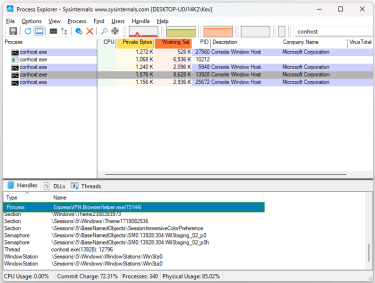
If a conhost.exe instance is tied to an unfamiliar parent process, that’s a strong indicator that further investigation is needed.
Additionally, the valid conhost process doesn’t connect to the internet, so outbound network activity is another likely indicator of malware. If your firewall or network monitoring tool shows conhost.exe making external connections, this strongly suggests a malicious version.
If you suspect a malicious conhost.exe file, run a full system scan with reputable antivirus software. Most modern antivirus suites can identify known variants of the conhost.exe malware and automatically remove them.
When high resource usage is a concern
High CPU usage is another red flag. While legitimate conhost.exe uses minimal CPU and memory, fake versions often consume excessive resources.
To monitor resource consumption, check the CPU and Memory columns in Task Manager for each conhost.exe instance.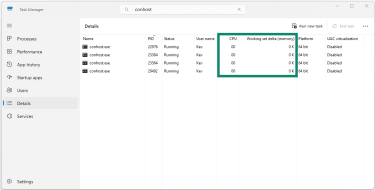
If you see conhost.exe consistently using high amounts of CPU when you haven't opened any console windows, you should investigate further. Conhost.exe can show higher CPU usage when your system is under heavy load from multiple tasks and processes, especially when several console-based programs are running simultaneously. If you see it using unusually high CPU for extended periods, check which command-line applications are currently running.
Sometimes, a stalled script or an unresponsive command-line task can cause its associated conhost.exe process to remain active longer than expected and consume resources indefinitely. In these situations, ending the parent application in Task Manager usually resolves the issue.
Other factors that could result in conhost.exe consuming a lot of resources on your system include.
- Number of open console windows: Each Command Prompt, PowerShell, or other console application creates its own conhost.exe instance. When multiple console-based applications run simultaneously, the conhost.exe process may utilize a higher percentage of CPU resources. Ten console windows naturally use more memory than two.
- Type of commands being executed: Simple commands like directory listings use minimal resources, while scripts that process large amounts of data or perform complex operations require more CPU and memory. Applications that rely heavily on background command-line operations can lead to higher resource usage.
- Background tasks and scheduled processes: System maintenance tasks, Windows updates, and some third-party applications often use hidden command-line tools to perform their functions. These hidden console processes contribute to overall resource usage but typically complete quickly and close automatically.
- System hardware and configuration: Older hardware or limited memory can make resource usage more noticeable, even when conhost.exe is functioning as intended.
If you notice any conhost instances with unusually high resource usage without an identifiable cause, run a malware scan immediately. This behavior strongly suggests malicious activity rather than normal system operation.
Related Windows processes
Conhost.exe works alongside other Windows processes that handle command-line input, scripting, and task execution. Understanding how these processes relate to one another makes it easier to see where conhost.exe fits into the broader Windows environment.
Conhost.exe vs. cmd.exe
Cmd.exe, commonly known as Command Prompt, is the program responsible for executing text-based commands, scripts, and batch files. When you open Command Prompt, Windows launches it alongside a corresponding conhost.exe process that manages the window interface.
In simple terms, cmd.exe does the work, while conhost.exe controls how that work is displayed on screen.
If a conhost.exe process is ended in Task Manager, the Command Prompt window disappears, but cmd.exe may continue running in the background without a visible interface. By contrast, closing the Command Prompt window normally ends both cmd.exe and its associated conhost.exe process.
Conhost.exe and PowerShell
PowerShell is a more advanced command-line and scripting environment used for system administration and automation. Like Command Prompt, it relies on a console window to interact with users.
When you open PowerShell, conhost.exe manages the interface. This allows PowerShell to support features such as window resizing, text rendering, and input handling in a way that’s consistent with other Windows console tools.
Although PowerShell and Command Prompt serve different purposes, their relationship with conhost.exe is similar. In both cases, conhost.exe provides the interface layer, while the command-line tool itself handles execution and logic.
However, modern PowerShell implementations offer alternatives to the traditional console host. Windows Terminal, Microsoft's modern terminal application, provides its own interface and can host PowerShell without relying on conhost.exe for visual presentation.
Despite these alternatives, the traditional PowerShell application still uses conhost.exe. When you launch PowerShell from the Start menu or Run dialog, Windows creates both a powershell.exe process and its corresponding conhost.exe instance.
Conhost.exe vs svchost.exe
Svchost.exe hosts Windows services that run in the background, often grouping multiple services under a single process. It manages Windows services like Windows Update, network connections, and audio, while conhost.exe only handles console window interfaces. Sometimes, svchost.exe relies on conhost.exe to display necessary command-line output or handle specific user commands during system tasks.
It’s important to note that malware can masquerade as an svchost.exe process, just as it can with conhost.exe. The verification methods are similar for both processes: check the file location, examine digital signatures, and monitor resource usage. Legitimate svchost.exe files reside in C:WindowsSystem32 or C:WindowsSysWOW64, while legitimate conhost.exe files are only found in C:WindowsSystem32.
Can conhost.exe be disabled or removed?
Conhost.exe is a core Windows component and isn’t designed to be removed. Removing it would break Command Prompt, PowerShell, and numerous system functions that depend on console interfaces.
Windows prevents deletion of active system files, so attempts to remove conhost.exe usually won’t work. Even if you managed to delete it through Safe Mode or other methods, Windows automatically restores conhost.exe if it's removed or corrupted, since the operating system recognizes it as a critical component.
You also shouldn't try to disable conhost.exe to improve performance. The process uses minimal resources during normal operation, and any perceived performance issues are likely due to other factors.
If conhost.exe appears to be causing issues, the recommended approach is to identify the program that launched it rather than trying to remove conhost.exe itself. In most cases, addressing the underlying application resolves the problem without affecting system functionality.
FAQ: Common questions about conhost.exe
Is conhost.exe a virus or malware?
No, Console Window Host (conhost.exe) isn’t a virus or malware. It’s a legitimate Windows system process that supports command-line applications. In normal cases, its presence in Task Manager is expected and doesn’t indicate a security issue. That said, some malicious programs may attempt to use the same file name. This is why it’s important to verify the file’s location and behavior rather than relying solely on its name.
Why does conhost.exe keep running in Task Manager?
Console Window Host (conhost.exe) runs whenever a console-based application is active. This includes visible tools like Command Prompt or PowerShell, as well as background tasks that rely on command-line components. If the associated task is still running, conhost.exe will remain active. Once that task finishes or is closed, the conhost.exe process usually ends as well.
Can conhost.exe affect system security?
On its own, Console Window Host (conhost.exe) doesn’t pose a security risk. It doesn’t access the internet, collect personal data, or perform actions outside its role as a console window handler. Security concerns only arise if a file named conhost.exe is located outside the Windows system directory or behaves in an unusual way. In those cases, further checks can help determine whether the process is legitimate.
What should I do if conhost.exe behaves suspiciously?
If Console Window Host (conhost.exe) shows unusual behavior, start by checking its file location through Task Manager. A legitimate file should be stored in the Windows System32 folder. You can also review which application launched the process to see if it matches expected activity. If anything looks out of place, running a reputable security scan can help identify potential issues. If the file is legitimate and linked to a known task, no action is usually required.
Take the first step to protect yourself online. Try ExpressVPN risk-free.
Get ExpressVPN