 Celebrate with up to 80% off
Windows 11 privacy guide: Essential settings to protect your data


Windows 11 includes privacy settings that control how Microsoft collects, uses, and personalizes data on your device. Some settings affect ads and recommendations, others control app permissions or device features, and a few are tied to essential functions like updates, security, and system reliability.
What data does Windows collect?
Windows 11 collects different kinds of information to help keep the system secure, deliver updates, troubleshoot issues, and deliver personalized experiences.
Diagnostic data
Required diagnostic data includes information about the device, settings, capabilities, and whether Windows is performing properly. This can include device type, hardware configuration, Windows version, installed drivers, update status, and basic error information. If you enable optional diagnostic data, Microsoft may also collect more detailed device activity, website browsing information, enhanced error reporting, and crash-related memory data.
Personalization and recommendations data
Windows can use settings such as advertising ID, app launch activity, and language preferences to personalize ads, Start and search suggestions, website language matching, and recommendations in Settings.
App, search, and account-linked data
Apps on Windows can request access to features and data such as location, camera, microphone, contacts, and calendar, which you can grant or deny. These controls mostly apply to Microsoft Store apps; desktop apps may not appear in permission lists and may manage access differently.
If you sign in with a Microsoft account, some Microsoft services may save account-linked data to the cloud, depending on the services you use and the settings you enable. This can include Bing search activity, Microsoft Edge browsing activity, location, voice, media, and app and service activity.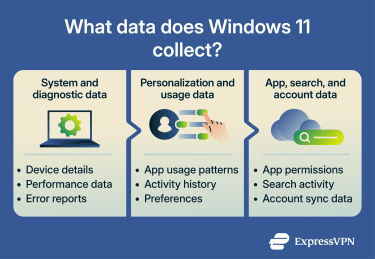
Why default privacy settings aren’t enough
Windows 11 may enable several data-sharing and personalization features by default. For example, depending on setup choices, region, account type, and device policies, personalized ads, recommendations, app launch tracking, and suggested content may be active.
These defaults are designed to support convenience and feature functionality. Reviewing them can help you decide which personalization, diagnostic, and account-linked features are useful to keep enabled and which ones you prefer to limit.
Microsoft says it doesn’t sell user data, but it may share personal information with third parties for personalized advertising purposes. The company may also share data with vendors and service providers acting on its behalf, as well as among its controlled affiliates and subsidiaries.
You can manually adjust these settings to limit data collection and reduce personalization.
How to maintain privacy without breaking features
Here's a checklist of what you can usually turn off and what is best left enabled.
Settings that are usually safe to disable
Turning these settings off usually won’t interfere with core Windows functions, though some personalization, convenience features, or app functions may change.
- Advertising ID: Limits apps’ access to the Windows advertising identifier, potentially making ads less personalized.
- Optional diagnostic data: Limits extra usage data collection while keeping required diagnostics active.
- Unnecessary app permissions: Safe to disable for apps that don’t clearly need access to your location, camera, microphone, or other data. For apps that do need access, allow only the specific permission required.
- Nearby sharing: Only needed if you share files or links with nearby devices over Bluetooth or Wi-Fi.
- App launch tracking for Start and search: Stops Windows from using app launches to improve Start and search results.
- Suggested content in Settings: Removes feature suggestions and recommended content from the Settings app.
- Website access to your language list: Prevents websites from automatically localizing content based on your language preferences.
Settings to leave enabled
These controls support core security and system functions.
- Required diagnostic data: Helps Microsoft keep Windows reliable, secure, and operating normally. Most consumer systems don’t allow this to be turned off entirely.
- Windows Update: Installs security patches, bug fixes, and reliability updates.
- Microsoft Defender security protections: Real-time protection and security intelligence updates help detect and block malware.
Also read: How to remove fake Windows Defender Security Center.
Essential Windows privacy settings to change first
The settings below can have a noticeable impact on everyday privacy without affecting how your device works.
Turn off advertising ID
Windows assigns a unique advertising ID to each profile on a device. Apps that use the Windows advertising identifier can use it to provide more relevant ads and personalized experiences.
Turning it off doesn’t reduce the number of ads you see, but it limits apps’ access to this identifier, and ads may become less personalized.
To turn it off:
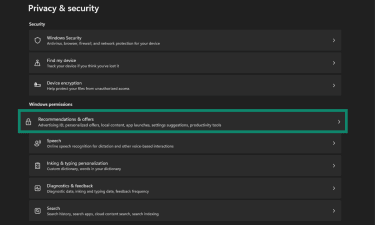
- Go to Settings > Privacy & security > Recommendations & offers.
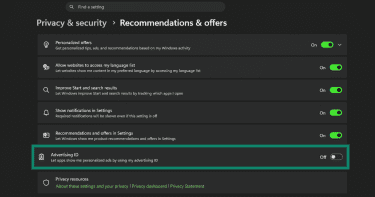
- Toggle off Advertising ID.
Limit location tracking
Windows uses your device’s location to support features like maps, weather updates, and Find My Device. Apps with the necessary permissions can also access this data.
To limit location tracking:
- Go to Settings > Privacy & security, and click Location under App permissions.
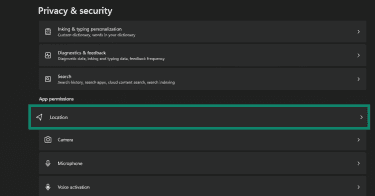
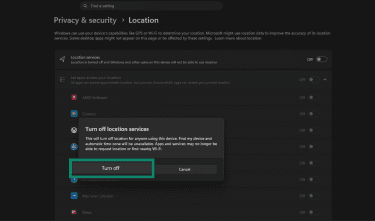
- Turn off Location services. Windows will display a Turn off location services message. Select Turn off to proceed.
Alternatively, keep Location services on and allow location access only for selected apps under Let apps access your location. Note that desktop apps may not appear in the app-permission list and may manage location access differently.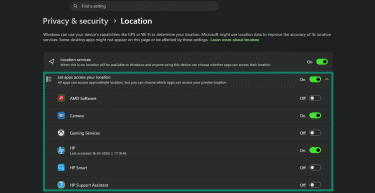
Manage diagnostic data
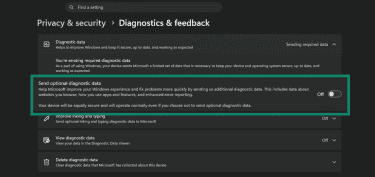
Windows 11 doesn’t let you completely disable diagnostic data, but you can turn off optional diagnostic data.
To limit optional diagnostic data:
- Go to Settings > Privacy & security > Diagnostics & feedback.
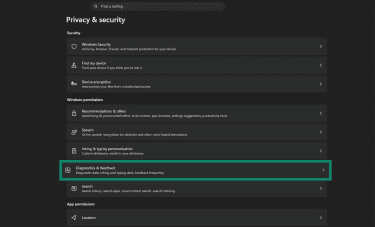
- Turn off Send optional diagnostic data.
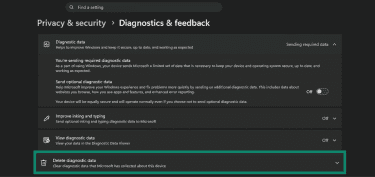
You can also clear previously collected diagnostic data:
- Go to Settings > Privacy & security > Diagnostics & feedback.
- Scroll to Delete diagnostic data.
- Select Delete and confirm.
Limit Nearby sharing
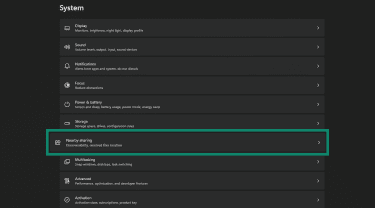
Nearby sharing lets you send files, photos, and links to nearby devices over Bluetooth or Wi-Fi. If you don't use it or only share between your own devices, limit how widely your device is discoverable.
To adjust it:
- Go to Settings > System > Nearby sharing.
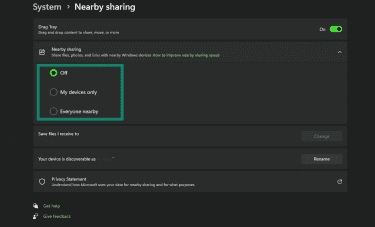
- Select Off if you don’t use it, or choose My devices only instead of Everyone nearby to share only with devices signed into your Microsoft account. If you choose Everyone nearby, nearby devices may be able to see your PC name and Bluetooth Media Access Control (MAC) address.
Limit personalization and recommendation features
To limit recommendations based on your activity:
- Go to Settings > Privacy & security > General or Recommendations & offers, depending on your Windows 11 version.
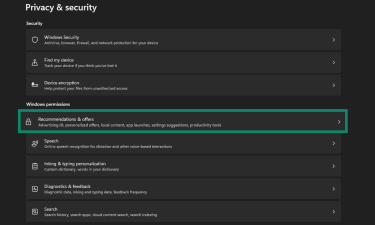
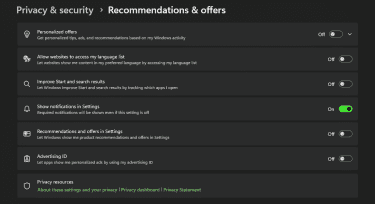
- Turn off:
-
- Personalized offers
- Allow websites to access my language list
- Improve Start and search results
- Recommendations and offers in Settings
Manage app permissions
Windows 11 lets you control which apps can access your location, camera, microphone, contacts, and other data. Apps often receive these permissions when first used, and access may remain available until you review or change it.
- Go to Start > Settings > Privacy & security.
- Scroll to the relevant permission category, such as Location, Camera, or Microphone.
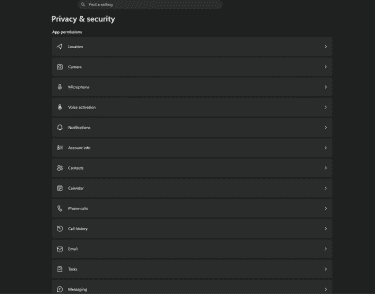
- Open each category to see which apps have access and adjust them as needed or turn access off entirely.
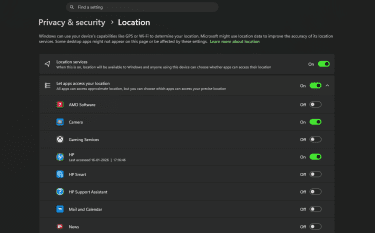
One important limitation is that these controls apply mainly to Microsoft Store apps. Desktop apps access data differently, may not use Windows permission prompts, and often don’t appear in these lists. For some permissions, such as camera and microphone, Windows may include separate desktop-app access controls, but individual desktop apps can’t always be managed from the privacy settings page.
Strengthen browser and search privacy
Browser privacy settings reduce routine tracking and control what data Microsoft Edge stores and shares, but they don't make your activity completely private.
Adjust Microsoft Edge tracking prevention
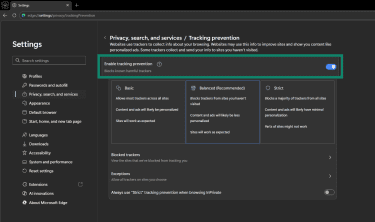
Microsoft Edge includes built-in tracking prevention with three levels: Basic, Balanced, and Strict.
For most people, Balanced is the best place to start. It blocks potentially harmful trackers and trackers from sites you haven’t visited, while reducing the chance that websites will break.
Strict blocks more known trackers and restricts tracker access to cookies and other browser storage. This improves privacy but may cause some websites or embedded features to stop working correctly.
To change it:
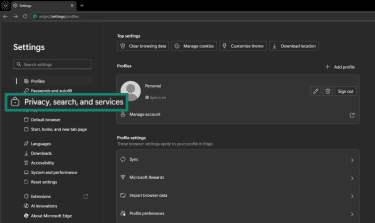
- Open Edge, click the three-dot menu, and go to Settings. Click Privacy, search, and services (you might need to click the hamburger menu in the left-side panel to view this option).
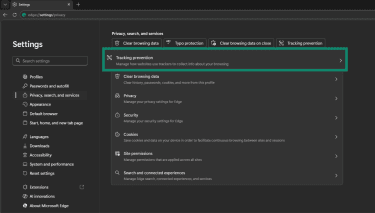
- Select Tracking prevention.
- Make sure Enable tracking prevention is switched on and set it to Balanced or Strict.
Change default search engine
If you don’t want address bar searches in Edge to go through Bing, you can change the default search engine.
To do that:
- Open Edge and go to Settings > Privacy, search, and services, then click Search and connected experiences.
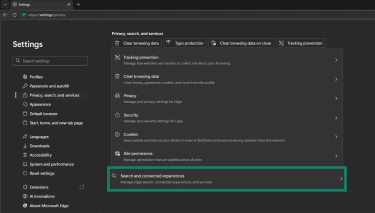
- Click Address bar and search.
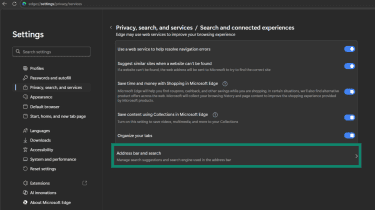
- Choose your preferred search engine under Search engines or Search engine used in the address bar.
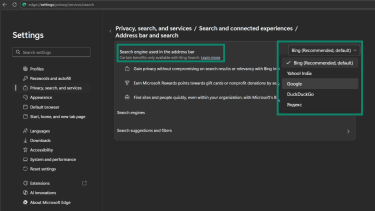
This doesn’t make your search private, but it lets you choose a provider whose privacy approach you prefer. If your preferred search engine doesn’t appear on the list, visit it and perform a search from the address bar first, then return to this menu.
Manage search and browsing data
Even with stronger browser settings, your browsing and search history can still be stored on your device, synced across devices, or saved to your Microsoft account.
To manage Edge browsing data:
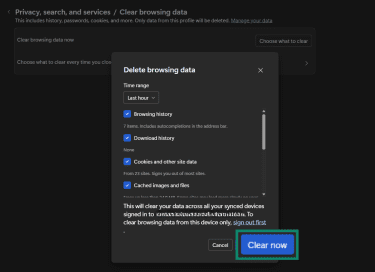
- Go to Settings > Privacy, search, and services, then click Clear browsing data.
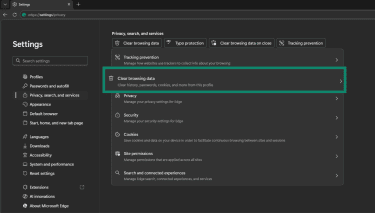
- Next to Clear browsing data now, click Choose what to clear.
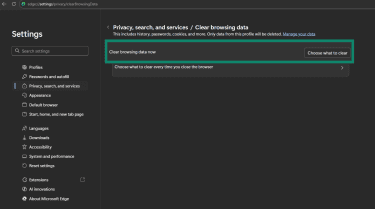
- Select the data types and time range, then click Clear now. This clears data for the current Edge profile. If sync is enabled, review sync settings or clear account-linked data from the Microsoft privacy dashboard as well.
Windows Search has separate privacy controls. Search can show results from your device, cloud accounts, and the web.
To manage Windows Search data:
- Open Settings > Privacy & security > Search.
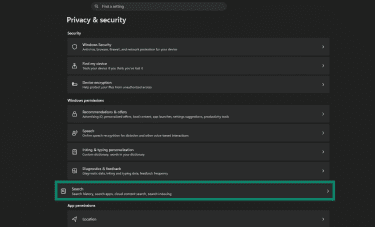
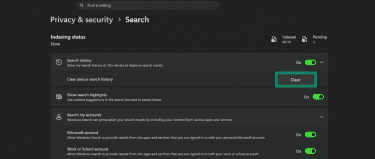
- Click Search history, then Clear next to Clear device search history.
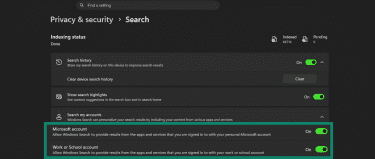
- Next, turn off the toggles under Search my accounts or Cloud content search if you don’t want Windows Search to show results from connected Microsoft, work, or school accounts.
Strengthen account and cloud privacy
Your account choice affects how much of your Windows activity connects to Microsoft’s cloud services. If you want a more private setup, you can reduce syncing, limit what Microsoft backs up, and review your data.
Use a local account instead of a Microsoft account
A local account keeps Windows sign-in local and reduces account-level syncing with Microsoft services. However, apps such as OneDrive or Edge may still sync data if you sign into them separately. Features tied to cloud syncing, Microsoft services, and cross-device continuity work better with a Microsoft account.
To switch:
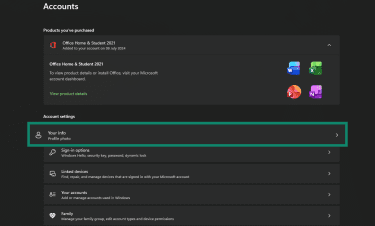
- Go to Settings > Accounts > Your info.
- Next to Microsoft account, click Sign in with a local account instead.
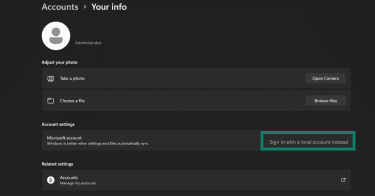
- Follow the prompts to create the account, then sign out and sign back in.
Manage OneDrive and sync settings
OneDrive can sync files and folders to your Microsoft account, while Windows Backup can save selected folders, apps, preferences, credentials, and other settings. This can include folders such as Desktop, Documents, Pictures, Videos, and Music, as well as certain system preferences.
To limit this, review which folders are backed up to OneDrive and turn off backup for anything you don’t need. Then check Windows backup settings to control what gets saved to your account.
Start with Settings > Accounts > Windows backup and review which categories are enabled. You can decide whether to back up apps, preferences, credentials, and other settings. If you use OneDrive, review both folder backup settings and which OneDrive folders sync to your computer, or unlink OneDrive from the device entirely.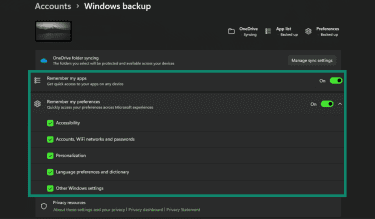
A practical approach is to keep cloud backup only for the files and settings that would genuinely matter if your PC were lost or reset. Everything else can stay local.
Use the Microsoft Privacy Dashboard
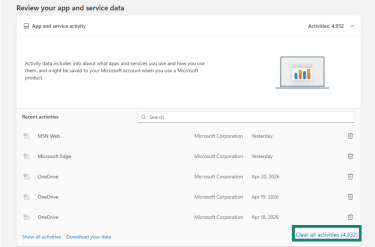
The Microsoft Privacy Dashboard lets you review and clear data associated with your Microsoft account, including Microsoft Edge browsing activity, Bing search history, location activity, voice and media activity, and app and service activity. The data shown depends on the Microsoft services you use while signed in and the settings you have enabled.
To access it and manage your data:
- Go to the Microsoft Privacy Dashboard and sign in with your Microsoft account.
- Select the category you want to review.
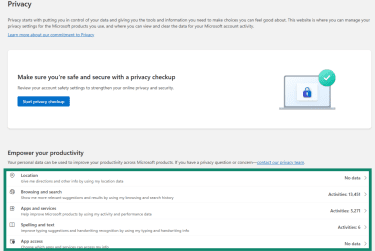
- Use options like Delete, Clear all activities, or similar controls to remove stored activity.
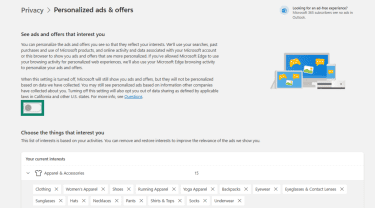
- Also, check Personalized ads & offers from your Microsoft account privacy settings and turn off personalized ads if you don’t want Microsoft ads tailored to your account. If you keep personalized ads on, review or edit your listed interests where available.
Advanced Windows 11 privacy controls
Windows 11 includes additional privacy controls that require more technical steps, such as Group Policy or registry edits. Some are available only on the Pro, Enterprise, or Education editions.
Disable telemetry
Windows 11 doesn't let you turn diagnostic data off entirely. You can set it to Required only under Settings > Privacy & security > Diagnostics & feedback, but Windows will still send some diagnostic data to Microsoft.
On Pro, Enterprise, or Education editions, Group Policy can be used to manage diagnostic data collection. Admins may also need to configure the diagnostic-data opt-in user interface policy to prevent users from changing the setting. Home edition doesn’t include the same Local Group Policy option, but users can still turn off optional diagnostic data in Settings.
Manage Copilot and Recall privacy settings
Windows 11’s AI features, including Copilot and Recall, are not consistent across all devices or versions. You may not see them depending on your update level, region, or hardware.
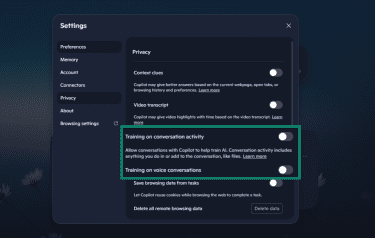
If Copilot is available on your system, you can review its privacy settings, including whether future conversation activity and voice conversations are used for model training.
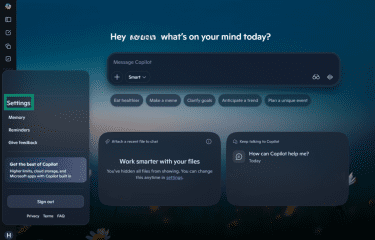
- Open Copilot, click your Profile icon, then click Settings from the available options.
- Click Privacy and turn off Training on conversation activity and Training on voice conversations.
If you don’t want to use Copilot on Windows, go to Settings > Apps > Installed apps, select the three-dot menu next to Copilot, then select Uninstall. This removes the Copilot app from Windows, but it won’t necessarily turn off Copilot experiences in Microsoft Edge, Microsoft 365 apps, or the web.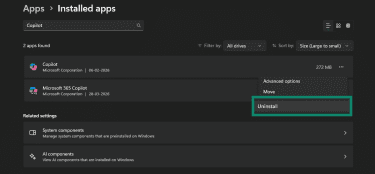
If Recall is available, you can turn it off under Settings > Privacy & security > Recall & snapshots.
Turn off Save snapshots if you don’t want Windows to store snapshots of your activity. You can also pause snapshot saving, filter specific apps or websites, or delete existing snapshots from the same section.
Changes to Recall settings may require Windows Hello authorization. Website filters work only in supported browsers, and some parts of filtered sites, such as embedded content or browser history, may still appear in snapshots.
Use PowerShell or Group Policy for more control
For stricter control, Windows includes tools such as the Group Policy Editor and PowerShell that can go beyond the standard Settings menu. These tools are best suited to advanced users or managed devices.
Group Policy is available on Windows 11 Pro, Enterprise, and Education. It lets administrators enforce certain privacy and system settings across the device.
For example, you can use it to:
Limit diagnostic data
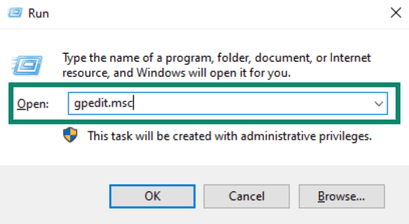
- Open Run, type in gpedit.msc (Local Group Policy Editor), and select OK.
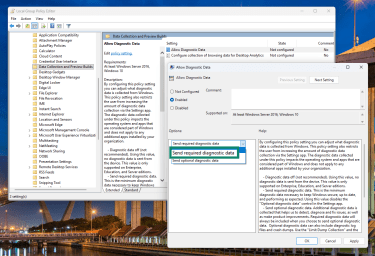
- Go to Computer Configuration > Administrative Templates > Windows Components > Data Collection and Preview Builds.
- Open Allow Diagnostic Data and set it to the lowest, which is Send required diagnostic data.
Disable Copilot
This may be available in older Windows 11 builds.
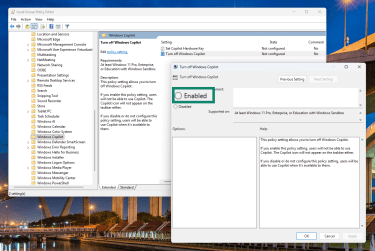
- Go to User Configuration > Administrative Templates > Windows Components > Windows Copilot.
- Select Enabled under Turn off Windows Copilot, then click OK.
PowerShell can help advanced users or administrators apply certain configuration changes, remove some preinstalled apps, or script registry and policy changes. Some settings can be applied across devices or managed environments, while others are user-specific and may require Group Policy, mobile device management, or changes within each user account.
Avoid disabling core Windows services directly unless you understand the impact. Disabling or removing core services can affect updates, diagnostics, app compatibility, or system stability. For most users, it’s safer to use the privacy controls built into Windows Settings.
Common Windows privacy mistakes to avoid
Certain habits can lead to more data sharing than intended. Reviewing privacy settings regularly helps keep Windows aligned with your preferences.
Leaving personalization settings unreviewed
Some personalization, diagnostics, and recommendation features may be enabled by default, depending on your setup choices, region, account type, and device policies. It’s worth reviewing settings regularly and turning off anything you don’t actively use or benefit from.
Granting permissions without reviewing them
Apps may request access to location, camera, microphone, contacts, or other data when they need those features to work. These permissions can remain active unless you review or change them.
Over time, multiple apps have ongoing access to sensitive data, even when that access isn't essential. Reviewing permissions and limiting them to what's necessary reduces unnecessary data access and background activity.
Ignoring privacy settings after major updates
Some Windows updates can introduce new features, new controls, or changed setting names and locations. Some new features may appear with their own default settings, especially those related to personalization, search, or system capabilities.
Checking your privacy settings after major updates helps ensure that new or changed features still match your preferences.
FAQ
Which Windows privacy settings should I change first?
Can I improve Windows privacy without third-party tools?
Does using a local account improve privacy?
Will changing privacy settings affect updates or performance?
How often should I review my Windows privacy settings?
Are Windows privacy tools safe to use?