How to find your Raspberry Pi IP address quickly and easily


Most Raspberry Pi boards don’t include a built-in screen, so users often access them over a network. To connect with Secure Shell (SSH), virtual network computing (VNC), or other remote tools, you usually need the Pi’s local Internet Protocol (IP) address.
The best way to find it depends on how your Raspberry Pi is set up. If you already have access to the device, you can check it directly. If not, you can usually use your router or another computer on the same network to find it.
What is a Raspberry Pi IP address?
A Raspberry Pi IP address is your device’s unique network identifier. On a local area network (LAN), it lets other devices find and communicate with the Pi.
Most home routers automatically assign a private IP address using Dynamic Host Configuration Protocol (DHCP). Because DHCP addresses can change over time, especially after reconnecting, rebooting, or switching networks, the address may need to be checked again unless a static IP address or router reservation is configured.
Why you may need to find your Raspberry Pi IP address
You’ll need your Raspberry Pi’s IP address anytime you want to access or manage it from another device. Common situations include:
- Connecting over SSH: Control your Raspberry Pi remotely from your computer without a monitor or keyboard.
- Opening a web interface: Many projects (like media servers or dashboards) run in a browser and require the IP address to access.
- Transferring files: Moving files between the Pi and other devices on the same network.
- Setting up a headless Raspberry Pi: If the Pi doesn’t have a monitor, keyboard, or mouse connected, network access is usually the main way to interact with it.
Find the IP address on the Raspberry Pi desktop
If your Raspberry Pi is running the desktop interface and connected to a display, you can quickly find its IP address.
Hover your cursor over the network icon (Wi-Fi or Ethernet symbol) in the system tray. A tooltip will appear showing the network you’re connected to and your local IP address.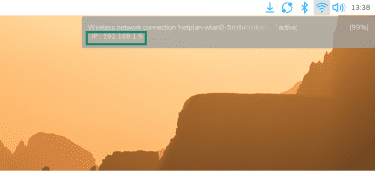
Find the IP address using the Terminal
You can also find your Raspberry Pi's IP address in the Command Prompt (CMD). This method works on both desktop and headless setups.
First, open the Terminal on your Raspberry Pi. To find your Raspberry Pi’s local IP address, type the hostname -I command and press Enter. The Terminal will show one or more IP addresses in plain text.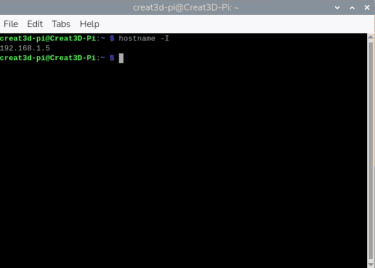
Find the IP address of your router
Your router keeps a list of all devices connected to your network, including your Raspberry Pi.
- Open a browser and log into your router’s admin panel by entering your router's local IP address in the address bar. Common examples include 192.168.0.1, 192.168.1.1, or 10.0.0.1. Log in with your router credentials.
- Go to the section labeled Connected devices, Device list, Attached devices, or DHCP clients.
- Look for your Raspberry Pi. It may appear as raspberrypi, by its custom hostname, or under an unfamiliar device name. The local IP address should be listed next to it.
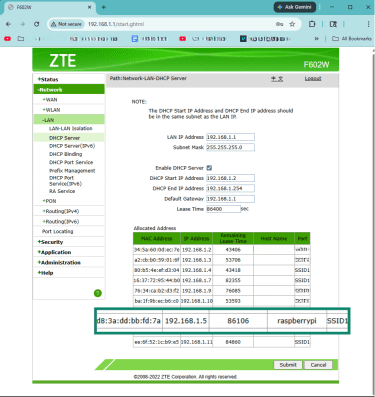
Find the IP address with a network scanner
If you can’t access your router's device list, a network scanner can list all devices on your LAN. It checks a range of local IP addresses and reports which devices respond.
- Use a network scanner tool like Nmap.
- Find your computer’s local IP address to identify the subnet. For example, if your computer’s IP address is 192.168.1.x, you can scan the local subnet with a range such as 192.168.1.1-254.
- Look for an entry named raspberrypi, your Pi’s custom hostname, or a device with a Raspberry Pi-related Media Access Control (MAC) address/vendor. Your Pi’s local IP address appears in the Nmap scan report for the device.
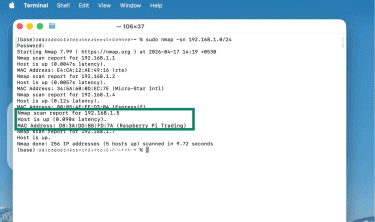
Note: If you scan specifically for port 22, SSH must be enabled on the Raspberry Pi. You can enable SSH during installation in Raspberry Pi Imager under Customization > Remote Access > Enable SSH.
Find the IP address from another computer
Here's how you can find your Raspberry Pi’s IP address from another computer on the same network.
- Open Terminal (macOS/Linux) or Command Prompt (Windows).
- Type ping raspberrypi.local and press Enter. Your Pi’s local IP address will appear in the output. If your Raspberry Pi uses the default hostname and your computer supports Multicast Domain Name System (mDNS), the Pi’s local IP address will appear in the output. If you changed the hostname, use ping [hostname].local instead.
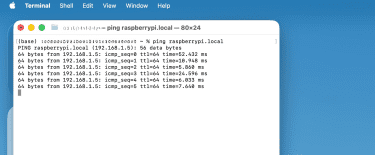
How to identify the correct Raspberry Pi on your network
If you have multiple Raspberry Pis with default settings, network scans and router lists won't distinguish them from each other. They'll all show the same hostname and manufacturer.
One reliable way to identify a specific Pi is to physically isolate it. Unplug or power off all other Raspberry Pis, then check your router’s device list or scan your network again to see which entry remains.
If you regularly use multiple Raspberry Pis, consider assigning them unique hostnames. That way, you can identify them instantly without physical isolation.
Why is my Raspberry Pi IP address not showing?
If your Raspberry Pi isn’t appearing on the network, the issue usually stems from connectivity or setup.
Here are the most common reasons:
- The Pi isn’t connected to the network: If you entered Wi-Fi credentials incorrectly, the network is out of range, or the Ethernet cable is loose, the Pi won't join the network.
- DHCP didn’t assign an address: If automatic IP assignment fails, the Pi may assign itself a link-local fallback address, typically in the 169.254.x.x range. This may not appear as a normal DHCP client in your router’s device list because the router didn’t assign it.
- The Raspberry Pi hasn’t finished booting: If the device hasn't completed its startup process, it won't appear on the network yet.
- You used an outdated setup method: If you followed older tutorials, note that placing a wpa_supplicant.conf file in the boot folder no longer configures Wi-Fi on Raspberry Pi OS Bookworm and later. Use Raspberry Pi Imager's built-in Wi-Fi configuration instead.
Should you set a static IP address on Raspberry Pi?
A static IP address is a fixed network address that doesn't change, unlike a dynamic IP address that your router can reassign each time a device connects.
In most cases, you don’t need to set a static IP address. Your router assigns an IP address automatically.
If you want your Raspberry Pi to keep the same IP address, you have two options: configure a DHCP reservation on your router, which is usually recommended, or manually configure a static IP address on the Pi itself.
If you configure the address manually, make sure it doesn’t overlap with your router’s DHCP range. Manual static IPs can create conflicts if you choose an address your router already uses for another device.
When a static IP makes sense
A static IP helps when you need your Raspberry Pi to stay reachable at the same address. Consider it if you:
- Access the Pi regularly via SSH or remote desktop.
- Host services like a web server, media server, or dashboard.
- Run automated scripts or tools that connect to a specific IP.
FAQ
Can I find my Raspberry Pi IP address without a monitor?
What command shows the IP address on Raspberry Pi?
Why does my Raspberry Pi IP address keep changing?
How do I SSH into Raspberry Pi after finding the IP address?
Replace with the username for your Raspberry Pi and with its IP address. Enter your password when prompted.
Does Raspberry Pi have both IPv4 and IPv6 addresses?
What should I do if my Raspberry Pi isn’t connected to Wi-Fi?