What is VDI? Benefits, use cases, and how virtual desktop infrastructure works


Businesses with large or remote teams often struggle to manage software updates, security settings, and access controls across different devices and locations, especially when employees use personal or unmanaged devices.
Virtual desktop infrastructure (VDI) can simplify this by centralizing desktop management and providing users with a consistent work environment wherever they connect.
This article explains what VDI is, how it works, its benefits, and how it compares with enterprise virtual private network (VPN) remote access.
What is VDI?
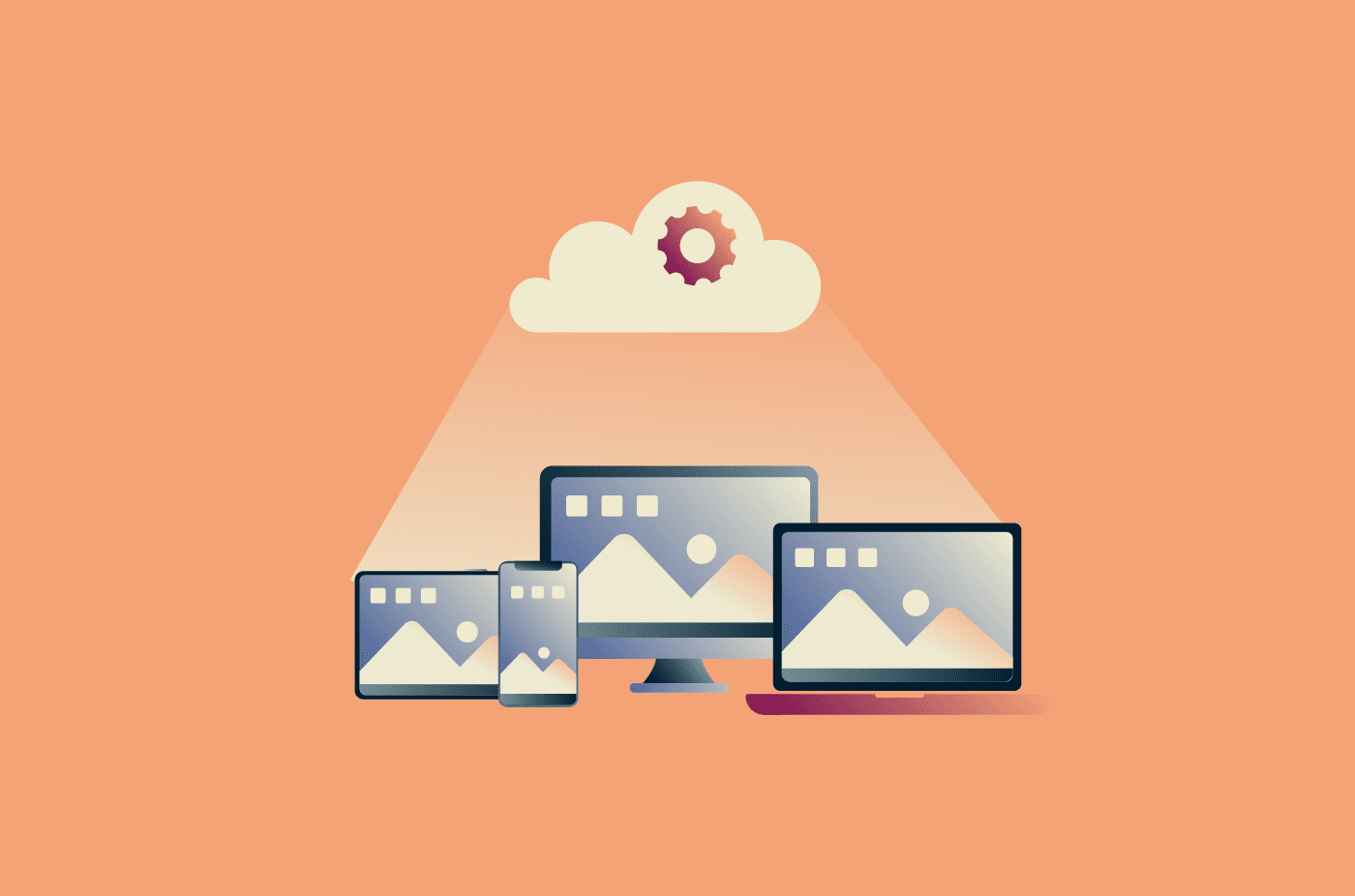
VDI is an infrastructure model that delivers desktop environments from centralized servers over a network rather than running them directly on endpoint devices. This can include the operating system, applications, storage, user profiles, and settings.
For example, an employee can use VDI to log into a work desktop from a personal laptop at home. Company apps and files run in the remote environment, which can reduce or prevent local data storage depending on the organization’s configuration.
How does VDI work?
VDI relies on several key components:
- Central server: Runs in a data center or cloud environment and provides processing power, memory, and storage space.
- Hypervisor: Software that allocates server resources to multiple virtual machines (VMs), allowing separate desktop environments to run independently on the same infrastructure.
- VMs: Independent software-based computers created by the hypervisor. Each runs its own operating system and applications, hosting a separate desktop environment.
- Connection broker: Software that sits between the endpoint and the server to manage user authentication and VM assignment.
- Remote display protocol: A protocol like Remote Desktop Protocol (RDP) or RC-over-IP (PCoIP) that carries user input from the endpoint and sends desktop display updates back to the device.
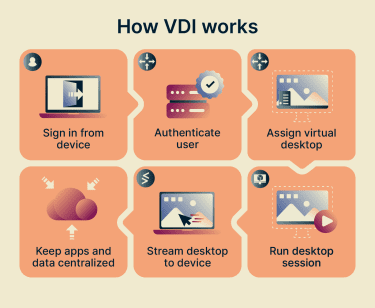
These components work together through the following process:
- Hypervisor creates VMs: The hypervisor creates VMs either on demand when a user requests access or pre-provisions them for faster deployment.
- Endpoint devices connect to the server: Users request access to a VM by signing in via a client or a browser-based portal. The endpoint can be a PC, tablet, smartphone, or thin client (a low-power device with minimal local processing).
- Connection broker assigns a VM: The connection broker verifies credentials and assigns an available VM based on user settings, permissions, or profiles.
- Remote display protocol carries the live session: It establishes the interactive session between the endpoint and the virtual desktop, transmitting user input and display output in real time.
VDI vs. VM: Key differences
VDI and VMs both rely on virtualization, often using a hypervisor to run virtual environments on shared hardware, but they differ in architecture and purpose.
VM architecture and use cases
A VM is a single virtual computer on a physical server. It has its own operating system, like Windows or Linux, and can run in a data center, in the cloud, or on a local machine, where a user can operate it directly.
A single physical machine can also run multiple VMs, each with its own role. VMs are primarily used to isolate environments and workloads, allowing different setups to run side by side without affecting each other.
This makes VMs useful for sandboxing, software testing, and running multiple operating systems on one host. Companies may also use VMs to host applications or databases, consolidate servers, and run environments over the long term.
VDI architecture and use cases
VDI is one form of desktop virtualization architecture that provisions and manages virtual desktops for users. It typically uses multiple VMs or session hosts and adds components for user authentication, desktop assignment, and session management.
Organizations use VDIs to standardize work environments, control access to systems and data, and manage large groups of users.
Because VDI runs desktops on shared infrastructure while giving each user their own session, it supports bring-your-own-device (BYOD) setups by allowing users to access company resources from personal devices under managed access controls.
Types of VDI
VDI can fall into several types based on how organizations assign, manage, and deliver desktops.
Persistent VDI
Persistent VDIs assign dedicated virtual desktops that retain their state across sessions, including files, installed applications, and settings. This allows users to keep a customized setup without the desktop resetting after every logout.
It’s useful for roles and tasks that require access to stored data and a consistent working environment. That said, it needs more storage space to maintain each desktop individually.
Non-persistent VDI
Non-persistent VDIs give users access to a shared pool of desktops rather than assigning a permanent desktop to each person. Each session starts from a standard desktop image, and changes are usually discarded after logout, restart, or reset.
This is useful for repetitive tasks and standardized workflows that don’t require personal settings or locally stored data. It can also reduce storage needs and limit the persistence of unwanted changes, since desktops return to a standard state between sessions. User-specific data may still be stored separately through profile management, cloud storage, or network shares.
On-premises VDI
On-premises VDI runs on infrastructure that an organization owns and manages in its own data center. IT teams control the servers, storage, and networking that support virtual desktops.
This setup offers greater control over performance, security, and data handling, but it requires more maintenance and incurs higher upfront infrastructure costs than cloud-based options.
Cloud-based VDI
Cloud-based VDI runs virtual desktops on infrastructure hosted by a cloud provider rather than on local hardware. Organizations access these desktops over the internet and can either manage the setup themselves or use a provider-managed service.
Self-managed cloud VDI
In a self-managed setup, organizations rent cloud Infrastructure-as-a-Service (IaaS), including compute, storage, and networking. They then install and run the virtual desktop software on top of it.
This makes it easier to scale resources as needed but requires internal expertise to handle setup, scaling, and maintenance.
Desktop-as-a-Service (DaaS) cloud VDI
DaaS delivers virtual desktops from cloud infrastructure managed by a third-party provider, usually on a subscription or pay-as-you-go basis.
The provider handles setup, updates, and maintenance. Organizations still manage areas such as user access, applications, policies, and security settings, depending on the service.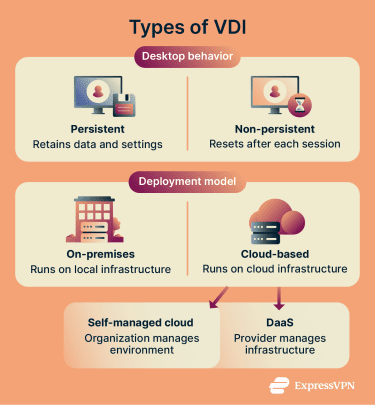
Benefits of VDI
VDI helps organizations improve operations in several ways:
- Increased accessibility: Organizations can provide employees access to a consistent desktop experience over the internet from supported devices and locations.
- Centralized management: IT teams manage desktops, applications, and user settings from a single system, which simplifies updates, patching, and troubleshooting.
- Cost efficiency: VDI allows organizations to share centralized computing resources, reducing the need for high-performance endpoint devices. However, overall savings depend on infrastructure, licensing, storage, and management costs.
- Improved security: Keeping data on central or cloud servers reduces the risk of data loss, theft, or compromise from lost or stolen devices. Requiring users to authenticate before accessing virtual desktops also supports stricter security policies and access controls.
- Faster recovery: Standardized desktop images can help IT teams restore user environments more quickly after disruptions, without having to rebuild each desktop from scratch.
- Scalability: Companies can provision desktops more quickly and scale capacity as needs change, especially in cloud-based VDI environments. On-premises deployments may still require additional backend hardware.
What is VDI used for?
Organizations deploy VDI in scenarios that require standardized access, compliance support, or temporary user provisioning. Common platforms include Microsoft Azure Virtual Desktop, Citrix Virtual Apps and Desktops, and Amazon WorkSpaces.
Call centers and shared workstations
Non-persistent virtual desktops are common for routine, repetitive duties that use a fixed set of applications. In call centers, for example, staff log into preconfigured desktops built for specific tasks. One setup might include tools for handling support tickets, while another focuses on processing customer requests.
VDI also fits environments with high turnover, where many users need the same setup across shifts and sessions.
Educational labs
Educational institutions often have multiple classes sharing the same labs or devices throughout the day. Instructors can create one lab desktop with all the required software and assign the same setup to all students. Access to specific apps and learning platforms can be aligned with class schedules, and systems can shut down automatically when not in use.
Contract and temporary staff
Instead of configuring separate devices or granting broad access to internal systems, IT teams can assign role-based virtual desktops with predefined permissions, apps, and restrictions.
Organizations can align access with contract scope, then adjust or revoke it as roles change. Such setups are convenient for onboarding contractors, vendors, and temporary staff.
Enterprise and government systems
VDI can help organizations provide controlled access to sensitive data in regulated enterprise and government environments, but compliance still depends on configuration, policies, monitoring, and supporting controls. Examples include:
- Government agencies: In the U.S., agencies that handle federal tax information (FTI) may use VDI only with appropriate safeguards. VDI environments can be configured to restrict actions such as file transfers, clipboard use, printing, or USB redirection, depending on policy requirements. The Internal Revenue Service (IRS) provides mandatory security requirements for agencies that use VDI to receive, store, process, or transmit FTI. Other countries and agencies may have their own data protection and remote access requirements.
- Healthcare: In the U.S., Healthcare personnel can use VDI to access electronic health records across clinical units and departments. It can also support telemedicine and remote access to hospital applications and databases, provided the environment is configured with the safeguards required for Health Insurance Portability and Accountability Act (HIPAA) compliance. Healthcare organizations in other regions may need to follow different privacy and security rules.
- Finance, banking, and retail: VDI can help limit where sensitive data is stored and accessed, supporting compliance efforts under frameworks such as the General Data Protection Regulation (GDPR) and Payment Card Industry Data Security Standard (PCI DSS). Organizations still need appropriate policies, logging, access controls, and data-handling procedures.
VDI vs. VPN for remote access security
Note: This section compares VDI with enterprise remote access VPNs used to connect employees to company systems. These differ from consumer VPN services designed for individual privacy and security, such as ExpressVPN.
Both VDI and remote access VPNs let employees access company resources remotely, but they operate differently, each with its own trade-offs.
| Virtual desktop infrastructure | Enterprise remote access VPN |
| Runs full desktops on remote servers | Encrypts device connections to company networks |
| Centralizes apps and data | Protects data in transit |
| More control over desktops and sessions | Security depends more on endpoint protections |
| Higher cost and more complex setup | Cheaper and easier to deploy |
| Best for sensitive data, compliance, or standardized desktops | Best for limited access to internal apps or resources |
How VDI vs. VPN facilitates remote access
VDI delivers a full desktop environment from a centralized server. Most desktop processing happens on the remote server, so the endpoint mainly sends user input and receives display output. This setup relies on internet stability and latency, which may affect responsiveness.
A remote-access VPN connects a user’s device to the company network over the internet by establishing an encrypted tunnel that protects data in transit. Users install a client and log in to establish the connection.
Once connected, the device can access internal drives and applications based on permissions. Applications run locally, so performance depends on the device’s processing power, the application, and network speed.
Security implications
VDI gives organizations tighter control. IT teams can apply security rules, install updates, and monitor activity across virtual desktops, making it easier to manage and respond to threats.
If an attacker gains access to a single session, isolation and least-privilege controls can limit what they can access, but the risk still depends on permissions, network segmentation, and monitoring. Non-persistent setups can also remove many unauthorized changes when the desktop resets, reducing malware persistence between sessions.
A remote access VPN protects data as it travels between the device and the company network, but it doesn’t secure the device itself. Organizations usually need additional controls such as endpoint protection, device posture checks, multi-factor authentication (MFA), and access policies.
Threats can also be harder to detect if an unmanaged or compromised device connects to the network. If the device is compromised, an attacker may be able to use that trusted access to impersonate the user and access internal data.
Which should you use?
VDI provides stronger centralized control and is common in industries that handle sensitive data or must meet strict compliance requirements. It’s also useful for companies with distributed teams and complex workflows that need consistent setups.
With the right server resources, such as GPU support, VDI can also support specialized or graphics-intensive apps for remote employees. However, VDI incurs higher costs and greater complexity, as it requires more time and resources to set up.
An enterprise remote access VPN works for smaller, simpler setups or lower-risk environments, like teams that only need to check internal dashboards or access company email. It’s often faster and cheaper to deploy, since each user installs the client and connects from an approved device.
A VPN can work well on slower connections for simple tasks because it transfers application data rather than streaming a full desktop. However, performance depends on the apps, file sizes, latency, and network design. If permitted by company policy, users may be able to download files, work offline, and sync changes later.
Also read: RDP vs. VPN: The complete guide to remote access, security, and speed.
FAQ: Common questions about VDI
Is VDI the same as desktop virtualization?
Is VDI better than traditional desktops?
Traditional desktops rely on individual endpoint devices, in which operating systems, applications, and data are usually managed locally or via endpoint management tools. This can increase support effort, complexity, and security risk if devices are unmanaged, inconsistently patched, or allowed to store sensitive data locally.
Can VDI be used on personal devices?
Does VDI require an internet connection?
How secure is VDI for remote work?
How much does VDI cost for a business?
Who should use persistent VDI?
Can small businesses use VDI?